On May 19, 2026, the charting library antv was attacked, and the latest version was embedded with malicious code.
On May 13, the popular TanStack series repo in the frontend community was also attacked.
On April 1, axios, which has a hundred million downloads weekly, was similarly attacked, and a malicious version was released.
It seems that news about supply chain attacks appears every month or even every week, and the targets are not limited to npm; Python’s PyPI, .NET’s NuGet, and even Docker Hub or VSCode extensions used by developers are all targets.
In this context, how should developers protect themselves?
This article mainly discusses supply chain attacks targeting npm, starting with the principles, followed by attack techniques and defense strategies.
Starting with Installing a Package
What happens when you run npm install express? (It’s actually more complex, but let’s simplify it).
First, since no version is specified, npm will look for the latest version of the express package. As of the time I wrote this article, it was version 5.2.1, released 11 days ago.
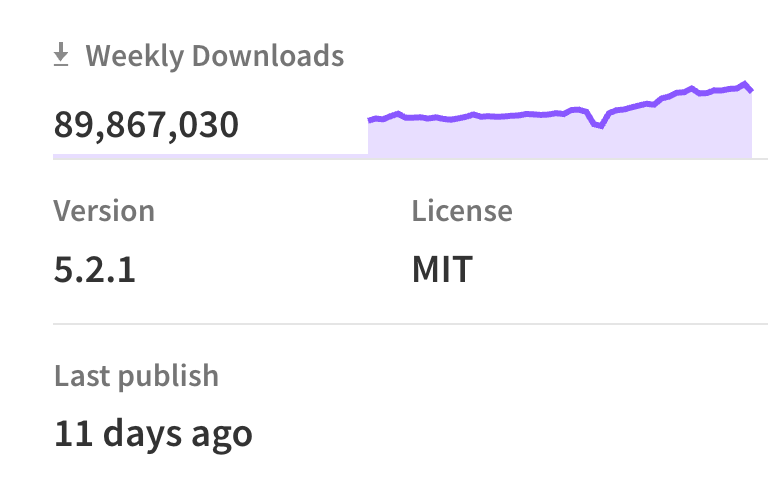
Thus, version 5.2.1 of express is downloaded to your computer.
Next, express itself has dependencies on other packages, which are defined in its package.json. There are quite a few:
{
  "dependencies": {
    "accepts": "^2.0.0",
    "body-parser": "^2.2.1",
    "content-disposition": "^1.0.0",
    "content-type": "^1.0.5",
    "cookie": "^0.7.1",
    "cookie-signature": "^1.2.1",
    "debug": "^4.4.0",
    "depd": "^2.0.0",
    "encodeurl": "^2.0.0",
    "escape-html": "^1.0.3",
    "etag": "^1.8.1",
    "finalhandler": "^2.1.0",
    "fresh": "^2.0.0",
    "http-errors": "^2.0.0",
    "merge-descriptors": "^2.0.0",
    "mime-types": "^3.0.0",
    "on-finished": "^2.4.1",
    "once": "^1.4.0",
    "parseurl": "^1.3.3",
    "proxy-addr": "^2.0.7",
    "qs": "^6.14.0",
    "range-parser": "^1.2.1",
    "router": "^2.2.0",
    "send": "^1.1.0",
    "serve-static": "^2.2.0",
    "statuses": "^2.0.1",
    "type-is": "^2.0.1",
    "vary": "^1.1.2"
  }
}
The next step is for npm to download each package based on this definition, ensuring that it is the “correct version.”
Version numbers are usually in the format a.b.c, such as 1.1.0 or 2.3.3, where the first number is the major release, typically indicating a breaking change. This means that upgrading from 1.2.0 to 2.0.0 may break some APIs, so directly upgrading the project could cause issues.
The last version number, like 2.3.0 to 2.3.1, usually indicates a small bug fix, while new features would change the middle number, such as 2.3.0 to 2.4.0.
For example, "body-parser": "^2.2.1 indicates that the ^ means “no breaking changes are accepted,” so ^2.2.1 can accept any version of 2.x.x, which is the most commonly used notation.
Therefore, if you actually test it, you will find that the installed version of body-parser is 2.2.2, as that is the latest version that meets the ^2.2.1 definition.
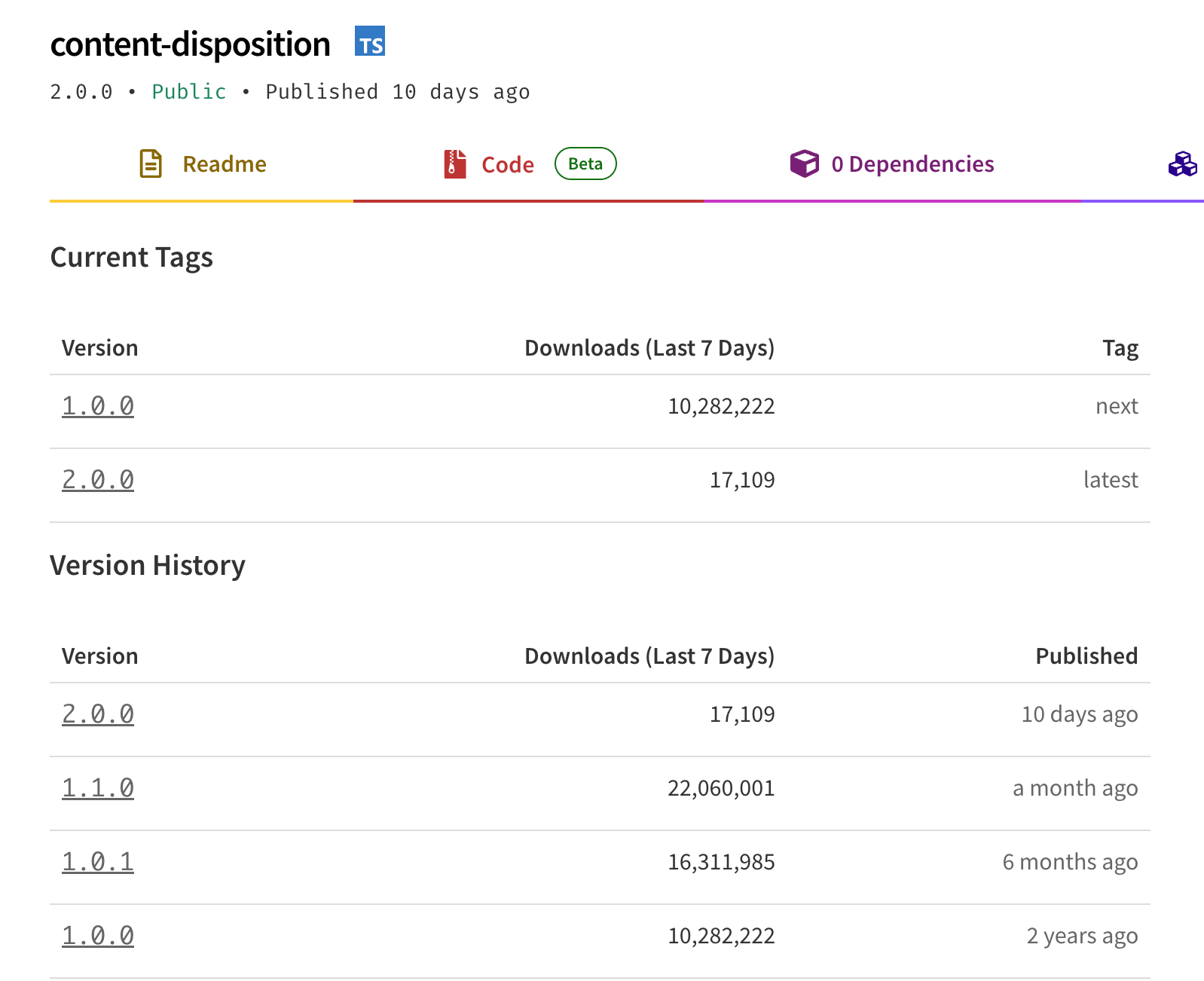
Taking another example from above, "content-disposition": "^1.0.0", the latest version is 2.0.0, but the installed version is 1.1.0, because 1.1.0 is the one that meets the ^1.0.0 definition.
The packages that express depends on may also have their own dependencies, so this process continues until all dependencies are installed.
After you run npm install express, you will see how many packages were installed in the terminal:
added 66 packages, and audited 67 packages in 2sLet’s pause here. Up to this point, what potential issues could arise during this installation process?
First, if the latest version of express has issues, we are compromised.
Second, if any dependency of express has issues, we are also compromised. If any of those 66 packages has a latest version released by a hacker, we will install that as well.
This is the origin of supply chain attacks, especially since the JavaScript ecosystem is often criticized for providing too few built-in functionalities, leading developers to install a large number of small packages to handle these common functionalities.
For example, if we want to know the relationship between HTTP status codes and messages, such as how 404 corresponds to Not Found, there is a package on npm with 150 million downloads weekly called statuses that specializes in this, and its core is essentially a JSON file mapping codes to messages.
For the same requirement, in Go you can directly use http.StatusText, and in Python you can use HTTPStatus(404).phrase, both of which have official libraries provided. However, in the JavaScript ecosystem, there is no such thing, and you can only rely on community-maintained packages.
Due to the lack of these official libraries, many functionalities are built up using packages from npm. If any small package is compromised, it can lead to the installation of malicious packages. From an attacker’s perspective, compromising one package can affect thousands, which is quite cost-effective.
In addition to the two issues mentioned above, there is another problem: “We accidentally install the wrong package.”
For example, if you mistakenly type an extra ‘s’ in express, it becomes expresss, which will install a different package. Therefore, hackers can register many misspelled packages and embed malicious code in them. If you accidentally make a typo, you could fall victim to this. This type of attack is called typosquatting.
Just between us, nearly 600 people add an extra ‘s’ each week, but fortunately, this package is empty:
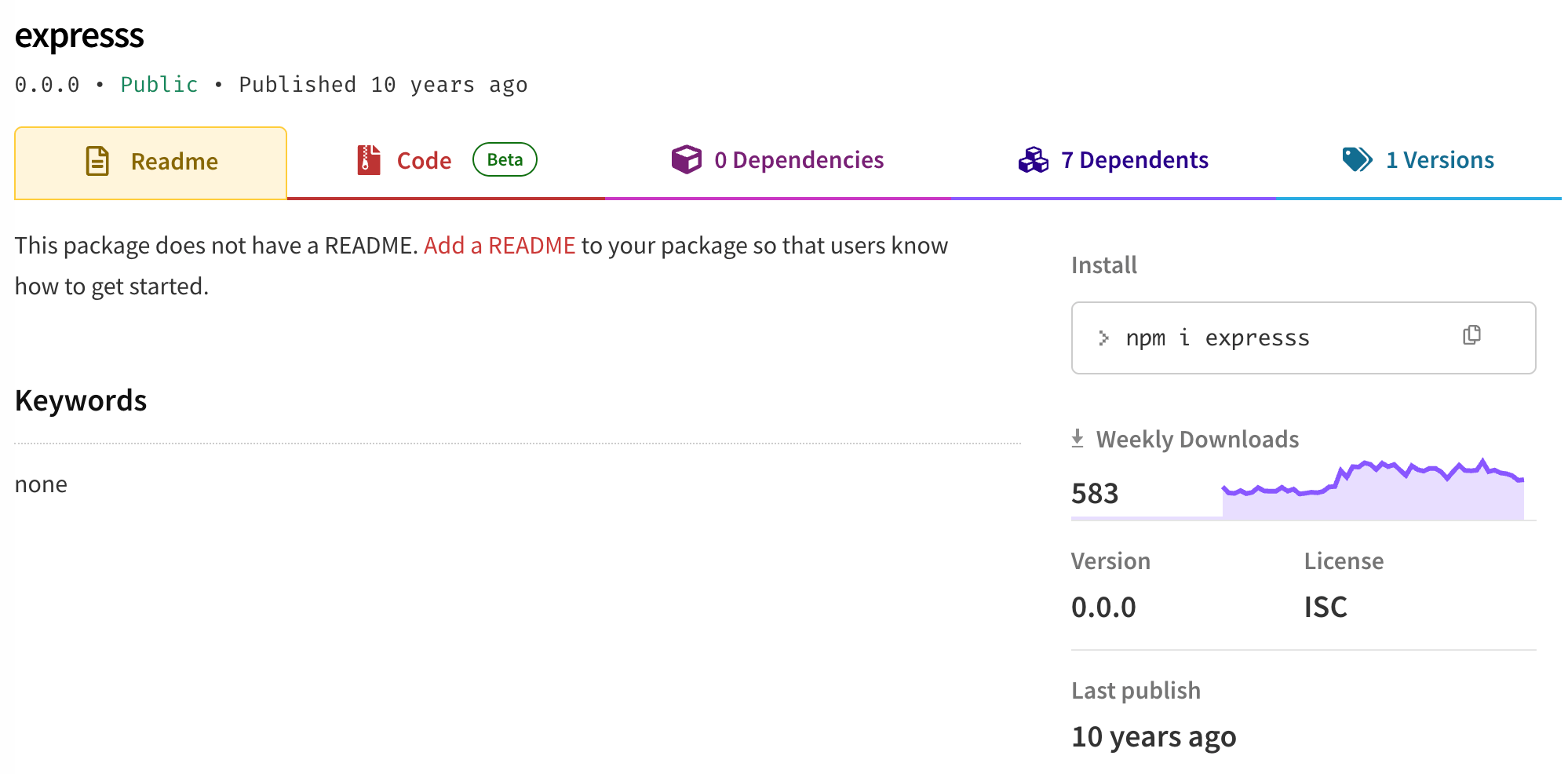
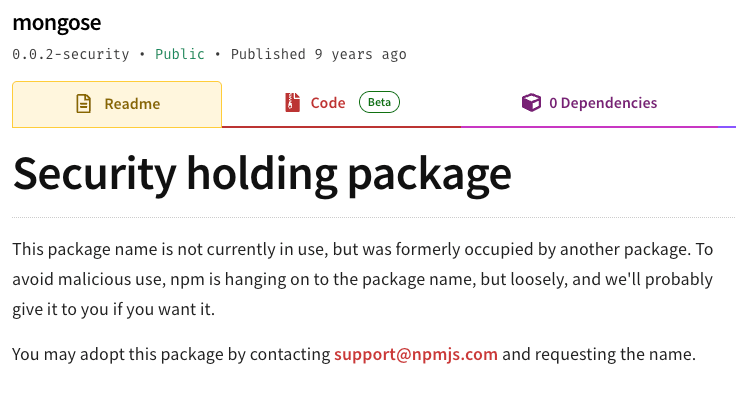
Some services prohibit the registration of such similar names, or some kind-hearted security personnel will register them first to prevent others from making mistakes or being registered by malicious actors. For example, the package mongose, which is just one letter off from the well-known package mongoose, was previously attacked, so it was later registered by the npm team and left unused:
What happens if you install a problematic package? How to defend against it?
Since it’s about installing packages, it should be fine as long as you don’t use them, right? Even if you accidentally install the wrong one by typing an extra letter, you will find that the package doesn’t exist when you write it correctly. As long as you don’t use the package, it should be safe, right?
In the npm ecosystem, if you install a malicious package, it’s game over.
The reason is that npm provides various scripts that can run, such as postinstall. As long as it is specified in the package, the shell script written in postinstall will be executed after you finish installing the package.
The normal use of postinstall is to automatically download necessary items after the package is installed, like puppeteer, which has node install.mjs written in its postinstall, running a script that downloads the browser and sets up the environment.
The abnormal use is to embed malicious code in postinstall. For example, in the attack on axios, a sub-dependency specified postinstall to run node setup.js, and setup.js contained malicious code, leading to an immediate compromise upon installation.
So how can we defend against this?
In npm, there is a parameter that can be set: ignore-scripts. If set to true, it will disable these pre/post hooks and will not execute them. This parameter is false by default, so remember to set it actively.
Starting from v10, pnpm defaults to blocking the execution of these scripts, and you must actively add packages to the allowBuilds list to run them. Initially, there was a GitHub discussion and vote: Should we block lifecycle script of dependencies during installation? #8918, where 70% of people chose to block it by default.
Bun’s strategy is to have a built-in trust list, where only packages on this list can execute scripts by default. Currently, there are over 300 packages on it: src/install/default-trusted-dependencies.txt
Although bun strikes a balance between developer experience and security, I still prefer pnpm’s approach, which directly blocks everything and requires explicit approval from the developer before execution.
That said, the feature of “executing scripts after installing packages” is not unique to npm; RubyGems next door has a similar feature. This mechanism also has the same problem: installing a malicious package can lead to a game over. Therefore, in April, they added two options to disable this behavior: Add –no-build-extension and –no-install-plugin options to gem install #9473.
However, to avoid breaking existing projects, this feature is disabled by default, just like npm, requiring developers to enable it actively.
For npm, we can add a user-level npm config in ~/.npmrc, so we don’t have to specify it in every folder:
# Do not execute postinstall scripts
ignore-scripts=true
How to Avoid Installing Problematic Packages
If a malicious package is installed, it can execute code through those scripts; even if we disable this feature, if our product uses these packages, the product itself can be compromised, and your website might be injected with malicious code.
“Disabling scripts” is considered a second layer of defense, while the first layer, which everyone wants to achieve, is actually: “Do not install malicious packages.” As long as we don’t install them, we’re safe.
So how can we achieve this? There are three methods.
First Method: Delay Downloads
Since hackers target the supply chain for attacks, there will naturally be corresponding cybersecurity companies monitoring this area for defense.
For example, TanStack, mentioned at the beginning, was discovered by StepSecurity within 20 minutes after being attacked, while axios was discovered about an hour later and removed by npm three hours after the malicious version was released.
Thanks to the efforts of these cybersecurity companies and automated detection, such attacks can usually be detected within a few hours, and npm will remove them as quickly as possible to prevent more people from downloading malicious packages.
This means that if we specify “I only download packages released 24 hours ago” during installation, we can significantly reduce the likelihood of downloading malicious packages (of course, this doesn’t solve the problem 100%, as it can still be downloaded if no one discovers it).
In pnpm, there is a minimumReleaseAge setting, which defaults to 1440 minutes (one day) starting from v11. So when codex asks you if you want to update and you say yes, if it asks you again whether to update after installation, it’s because the version hasn’t been released for a day, so it wasn’t installed (a real case; I’ve encountered this once or twice before realizing this).
In npm, there is also a min-release-age setting, measured in days, with the same effect, and it defaults to empty.
Bun also has a minimumReleaseAge setting, measured in seconds (bun is in seconds, pnpm is in minutes, npm is in days; did you all agree to be intentionally different?), and it also defaults to empty.
So if you are using pnpm version 11 or above, it will not download packages released within a day by default, reducing the likelihood of installing malicious packages.
If you are using npm, I also recommend setting this value; I personally set it to 3 days for extra safety:
ignore-scripts=true
min-release-age=3
However, setting this parameter will encounter another issue: if there is a vulnerability, you won’t be able to install the fix immediately and will have to wait a few days or manually override this config during installation, for example, npm install -g @openai/codex --min-release-age=0.
I believe you can assess the severity of the vulnerability and whether it can be exploited. If the likelihood of exploitation is low, waiting a few days is better. After all, the risk of non-exploitable vulnerabilities is manageable, while the risk of installing malicious code is comparatively higher.
For example, many packages may occasionally have some high vulnerabilities, but if you look closely, you’ll find that they are specific situations or certain features that have issues, and the packages you use or your product itself may not necessarily utilize those features, so you can wait a few days to fix them.
However, cases like React2Shell are different; prompt fixes are the best strategy.
Second Method: Lock Versions
Basically, the same version cannot be overwritten. For example, if 2.0.0 is safe, then it is safe; hackers can only release a malicious version by incrementing the version number to 2.0.1. Therefore, as long as a safe version has been downloaded, the next download will also be safe (unless the registry itself is hacked).
After we run npm install express, in addition to downloading the package, another file called package-lock.json will be generated, which is used for locking versions in JSON format.
For example, the dependency of express is body-parser, which specifies ^2.2.1, and the currently latest compatible version of body-parser is 2.2.2. After installation, the lockfile will fix it to 2.2.2:
{
  "node_modules/body-parser": {
    "version": "2.2.2",
    "resolved": "https://registry.npmjs.org/body-parser/-/body-parser-2.2.2.tgz",
    "integrity": "sha512-oP5VkATKlNwcgvxi0vM0p/D3n2C3EReYVX+DNYs5TjZFn/oQt2j+4sVJtSMr18pdRr8wjTcBl6LoV+FUwzPmNA=="
  }
}
When I delete all the node_modules and run npm install, it will definitely download version 2.2.2, and after downloading, it will verify the integrity to prove that the file has not been tampered with. If it has been tampered with, the hash will be different, resulting in an error.
If there is no package-lock.json, then when I run npm install, it will re-resolve the dependencies. If the latest version at that time is 2.2.3, it will install 2.2.3.
Therefore, once you generate the lockfile, if there are no issues with this batch of packages, as long as there are no upgrades or new packages added, “basically” it can guarantee that every download is safe, because the versions and hashes of the safe packages are recorded.
So please make sure to include the lockfile in version control; this is very important.
Tip 3: Scan Before Downloading
Since computers have antivirus software, naturally, there are also cybersecurity companies that provide protection for npm.
Currently, the most well-known is Socket’s Socket Firewall, abbreviated as sfw, which has both a free version and a paid enterprise version.
I mentioned earlier that these cybersecurity companies can quickly detect which packages have issues, even faster than the npm official team. For example, it was previously mentioned that a malicious version was detected within 1 hour of its release, but it was taken down 3 hours later, leaving a 2-hour window in between.
When you use sfw to download packages, it will first check Socket’s internal database to see if there are any issues with the package. If there are, it will be blocked directly. So before the npm official team takes it down, you won’t download the malicious package.
For those packages that have not yet been confirmed as safe, they will also be scanned on the server, and only after confirming that there are no issues will they be downloaded (the free version will only provide a warning, while the paid version can be set to block directly).
In fact, Socket’s sfw can be used not only for npm but also for Python’s pip and uv, or Rust’s cargo; other features are only available in the paid version.
Having said that, it seems we have done everything we should do. We have already activated the cooldown, only downloading packages released more than 3 days ago, and ignoring those scripts. Even if we do install them, they won’t execute malicious code immediately, so it should be very safe, right?
If you think this way, you are becoming complacent; the devil is always in the details.
The Devil in the Details: Packages Outside of the Registry
npm is a registry, and you can set up your own registry through other means, such as Verdaccio, which is a registry that you can set up yourself to host private packages.
Or there’s jsr, another open-source registry that can be used by adding @jsr:registry=https://npm.jsr.io to your .npmrc.
But since these are all registries supported by npm, it means they must adhere to the same set of protocols.
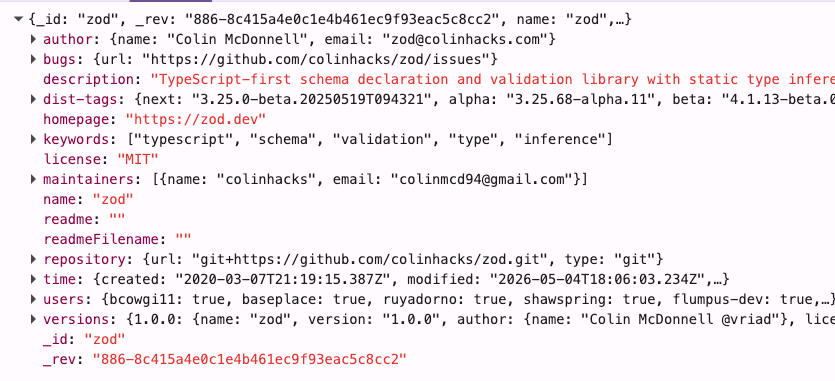
For example, when you install the package zod from npm, npm will first fetch https://registry.npmjs.com/zod, and the response will be a JSON describing it, including the latest stable version and information about each version, etc. The time field records the release time of each version, and the min release age is determined based on this time:
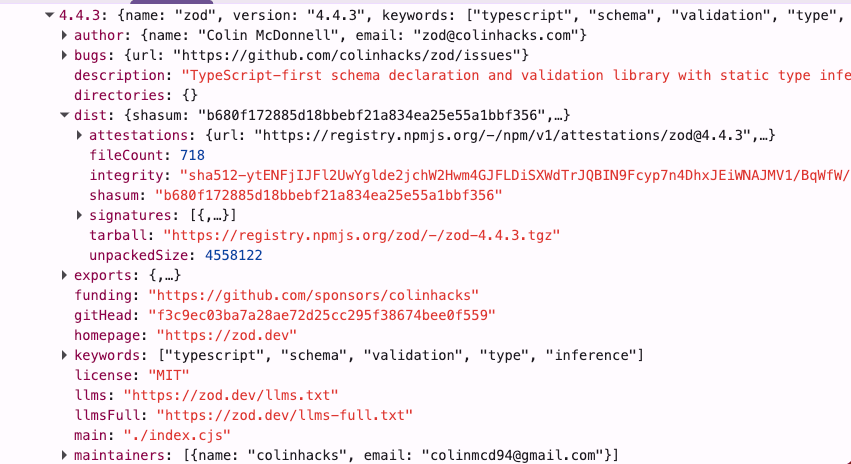
The details of each version are in the versions section. Taking the latest version 4.4.3 as an example, the integrity field is used to verify whether the package has been altered, and the tarball https://registry.npmjs.org/zod/-/zod-4.4.3.tgz is the package that will ultimately be downloaded:
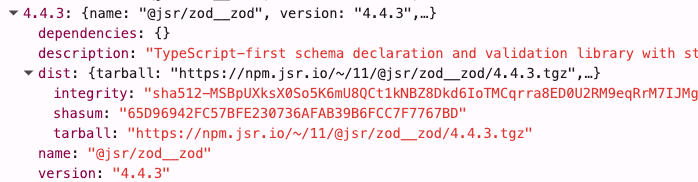
If you use the method mentioned above to have npm resolve packages by going to the jsr URL, when you install @zod/zod, the resolved JSON URL will be https://npm.jsr.io/@jsr/zod__zod:

Although it lacks quite a few things, it still has time and versions, and 4.4.3 still contains integrity and tarball:
The methods mentioned above still allow you to install packages from the registry; it’s just that the registry’s URL is different. It’s somewhat like being able to host a project on GitHub, GitLab, or Bitbucket, but fundamentally they are all git, the format is the same, it’s just that you need to change the URL.
However, besides installing packages from the registry, there are actually two other ways:
- Direct download via URL
- git
For the first method, taking the n8n component @n8n/instance-ai as an example, most of its dependencies are quite normal, such as "csv-parse": "6.2.1" or "nanoid": "3.3.8", with the name followed by the version number, but if you look closely, you’ll find one exception:
{
  "xlsx": "https://cdn.sheetjs.com/xlsx-0.20.2/xlsx-0.20.2.tgz"
}
When installing the xlsx package, it directly specifies the URL instead of a version. This means that this package will be downloaded directly from this URL, rather than from the npm registry.
Why is this the case?
It seems to be because the SheetJS team had some disputes with npm, so they moved, resulting in the current version of xlsx on npm being an old version from a few years ago, while the latest version is on their own gitea, and the official documentation also recommends installing directly from the URL:
npm i --save https://cdn.sheetjs.com/xlsx-0.20.3/xlsx-0.20.3.tgzWhat are the downsides of this? The downside is that besides npm, you now have another place to worry about. If this URL gets hacked and the content is replaced with a malicious version, you will download it directly. Moreover, the min release age does not apply because it is not from the registry, so there is no way to know when it was released.
Therefore, it’s best to avoid using third-party tarball URLs whenever possible.
The other method, using a git URL, might be used by some internal company projects. When a company does not have an internal private registry, it may use a git URL to download packages.
For example, this package system-font-families used to fetch the system font list has the following dependencies:
{
  "dependencies": {
    "babel-polyfill": "^6.23.0",
    "file-type": "^10.11.0",
    "read-chunk": "^3.2.0",
    "ttfinfo": "https://github.com/rBurgett/ttfinfo.git"
  }
}
This ttfinfo directly specifies a git URL. When we install this package using npm install system-font-families, we will see in the lockfile:
{
  "node_modules/ttfinfo": {
    "version": "0.2.0",
    "resolved": "git+ssh://[email protected]/rBurgett/ttfinfo.git#f00e43e2a6d4c8a12a677df20b7804492d50863c",
    "license": "MIT"
  }
}
The final resolved location of ttfinfo is a git URL, and it pins the latest commit f00e43e2a6d4c8a12a677df20b7804492d50863c. When others install using the same lockfile, they will install the same version.
But the problem is that the original system-font-families does not actually specify a version, so if there is no lockfile, you will always install the latest ttfinfo, and the min release age also does not apply.
More importantly, the cybersecurity company koi reported a vulnerability to npm last November, where when installing git dependencies, npm would clone the git repo and then run npm install again in the repo.
In the .npmrc, there is a setting called git, where you can specify which command to use for running git commands. Therefore, a malicious git package can simply add a .npmrc with the following content:
git=./pwn.shThen, by adding a git sub-dependency, when you install this package, the system will execute pwn.sh, bypassing the original ignore-scripts restriction. You might think that ignore-scripts can prevent any script from running, but that’s not the case.
At that time, npm stated that this was an intentional design and not considered a vulnerability, but later they did make some changes (which will be mentioned later).
Blocking git and direct URLs
Even though we have blocked scripts and added cooldowns, if a package is downloaded from git or a direct URL, we encounter other issues. Therefore, the best approach is to simply block packages from these sources, allowing downloads only from the registry, thus limiting the attack surface.
Starting from v11, pnpm has set the blockExoticSubdeps parameter to true by default. The Exotic refers to git and direct URLs, while Subdeps refers to “sub-dependencies.”
In other words, if the package you are installing is itself Exotic, pnpm will not block it. For example, if you directly install xlsx, it will install successfully. However, if you install a package A that requires xlsx, it will fail to install.
After all, the first-level dependencies are installed by the user themselves, so they should know what they are doing and the risks involved, but many people are unaware of what these sub-dependencies entail, so they are blocked by default.
Let me demonstrate this for you. If you execute pnpm i n8n, you will see the following error:
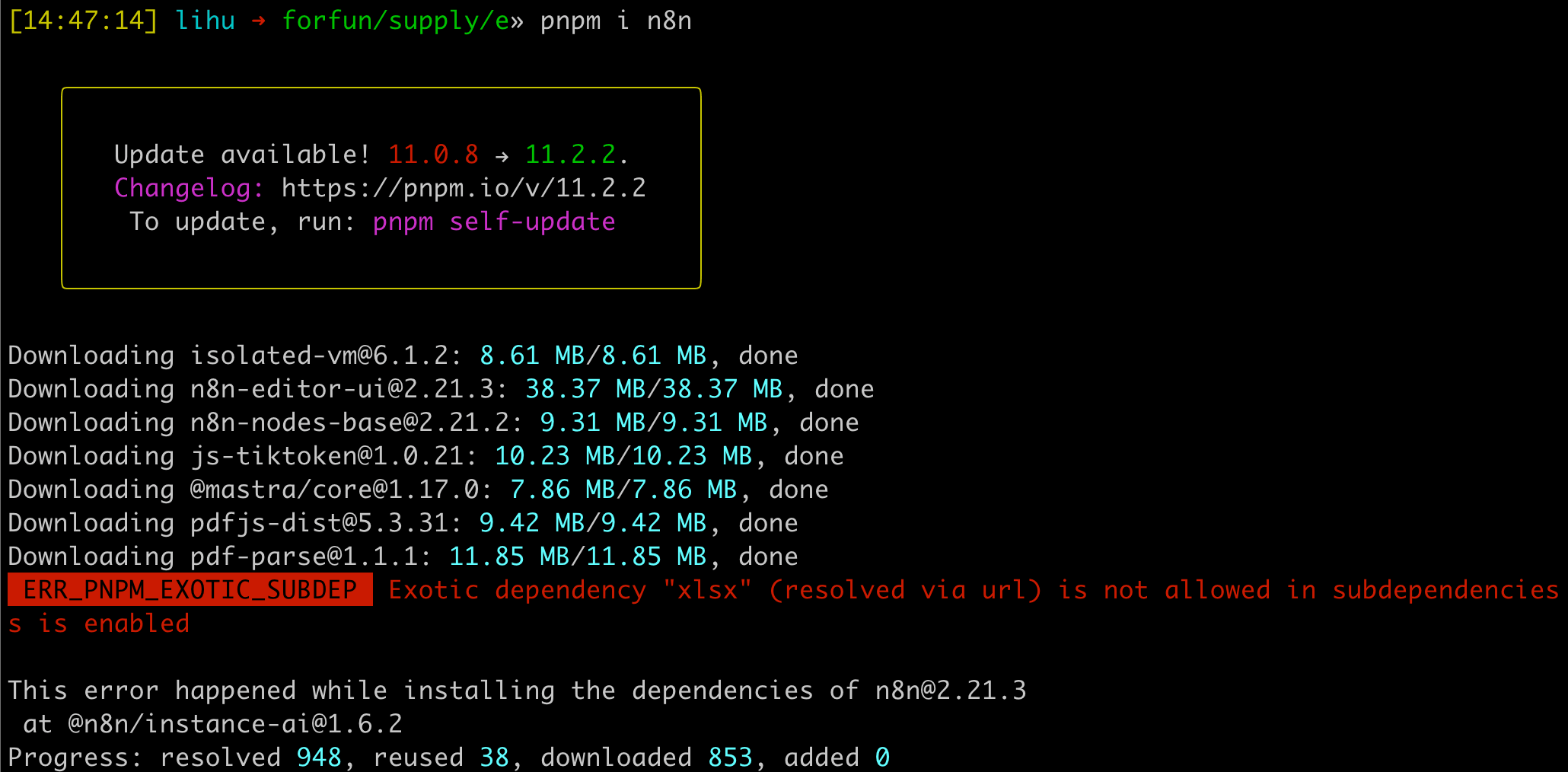
It clearly states that the sub-dependency of n8n, @n8n/[email protected], also depends on xlsx, but it was blocked due to blockExoticSubdeps.
Additionally, npm introduced two new parameters, allow-git and allow-remote, after version v11.10.0, which can be set to none, root, or all.
Currently, the default is all, which behaves the same as before, allowing both git and direct URLs. If both are set to root, it will behave like pnpm, allowing only the first-level packages to be from a URL or git.
According to npm’s announcement from February, starting from the next major version v12, allow-git will default to none, disallowing all installations.
This announcement even mentioned the behavior reported earlier by koi:
Git dependencies—direct or transitive—can include .npmrc files that override the git executable path. This enables arbitrary code execution during install even when using –ignore-scripts. The new –allow-git flag gives you explicit control over this behavior.
Initially, they said this was not a vulnerability and closed the report, but later, in some sense, they still fixed it, as the next major version will not allow git, perhaps not considering this behavior severe enough to be treated as an immediate vulnerability.
Sincerely recommending pnpm and my npm settings
While researching these supply chain attack methods in the JavaScript ecosystem, I can clearly feel that pnpm is more thoughtfully designed, and it blocks what needs to be blocked by default.
For example, you can directly find a document on Mitigating supply chain attacks, which clearly explains the current attack surface and defense methods, essentially covering the few points we mentioned earlier:
- Prevent postinstall scripts
- Prevent exotic transitive dependencies
- Delay package updates
- Use lockfile
There is also a trustPolicy that hasn’t been mentioned earlier, which is mainly related to releases. If the “trustworthiness” of a release decreases, it will be blocked first, mainly related to the method used during the release and provenance. I haven’t had time to study it, so I won’t discuss it further for now.
The defensive measures mentioned above have been automatically handled for you since pnpm v11:
postinstalland other scripts are disabled by default (this was available earlier, since v10)minimumReleaseAgeis set to 1 day by defaultblockExoticSubdepsis enabled by default
For npm, you need to set it up yourself. My current settings are:
ignore-scripts=true
min-release-age=3
allow-git=none
allow-remote=none
If needed, you can adjust it yourself, for example, if you need to use git, you can set allow-git=root and so on.
Summary
When using a computer in general, everyone knows not to casually download and install software from unknown sources. However, at the same time, some people casually install VSCode extensions, open-source projects from GitHub, or packages used during development, ignoring that these can also cause problems.
Developers are often high-value targets, and many developers have various cloud service keys directly on their computers, which could even be production keys. There are also risks when installing packages in CI, where there are usually more high-value tokens that can be stolen. Many attacks start by hacking into a certain package and then using that package to hack into more packages and companies, continuously expanding the scope of the impact.
Recently, there have been many supply chain attacks, with one occurring every week or two, and they are quite large in scale. Furthermore, previous supply chain attacks might have targeted a small package, but recent attacks have directly hacked into larger ones (like axios and TanStack, which were directly hacked), rather than starting from those very small sub-packages.
I recommend that everyone set up everything that needs to be configured. If using npm, it is:
ignore-scripts=true
min-release-age=3
allow-git=none
allow-remote=none
If using pnpm, just update to the latest version and that’s all.
If you want to be even safer, you can use the previously mentioned sfw to add an extra layer of protection.
Although risks cannot be avoided 100%, at least we can try to minimize them. For even greater safety, you can install packages or even develop entirely within a dev container, which allows you to control what the environment can access from a lower level, embodying a sandbox concept, but this comes at a higher cost.
In summary, I believe it is essential to configure npm properly or switch to pnpm.
Comments